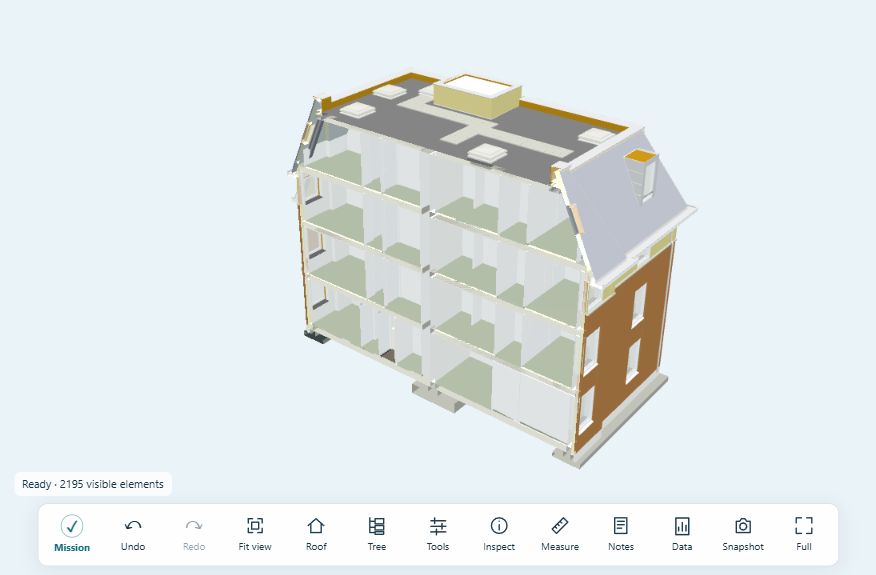
Explore an IFC, isolate elements and review its information. Make notes, compare versions and assemble a review package.
Element tree, visibility and section cuts
Measurements and element notes
Information checks and reported quantities
Guided review missions, version comparison and BCF exchange
Open Model Lab ↗Bring an IFC or explore the credited public sample.
2D + 3D quantity takeoff
Two sources. One checked schedule.
Send drawing measurements and IFC counts or reported quantities to one item register. Keep the drawing marks and model elements behind each contribution, so you can trace the result.
Choose the final source for overlapping items. Combine quantities only when they cover separate scopes. Missing values and conflicts stay visible for review.
Open takeoff register ↗Export a quantity CSV with source references. Estimates using your own rates are optional.
W2 · WindowsIllustrated example
Two references to the same five windows
Source
Count
Drawing marks PDF · Sheet 1
5 ea
Model elements IFC · Window group
5 ea
Final quantity Model selected by the reviewer
5 ea
The drawing and model describe the same items. Keep both references and count the windows once.
A straightforward workflow
Less setup. More time with the drawing.
Start with a drawing or model. Keep the source behind each quantity.
01
Bring a drawing.
Open your PDF, choose a sheet and calibrate its scale using a known dimension.
02
Measure. Count. Name.
Mark up the drawing and reuse item names. Windows labelled W2 become one grouped total.
03
Keep the work useful.
Review grouped totals, add contributions to the takeoff register and export a checked schedule. Save a portable backup of your drawing work.
Team review · Beta
A shared project. A clearer follow-up.
Keep the file, the finding and the next step together.
Upload a model, drawing or saved takeoff snapshot and invite your reviewers. Open the shared file from the project, review findings and keep everyone working from the same version.
Shared model element notes, viewpoints and issue follow-up
File revisions and shared quantity contributions
Project missions with shared progress and outcomes
Open Mission in Drawing Lab or Model Lab for a guided checklist. Review each step yourself, record an outcome and download your summary. Personal progress stays on this device; the shared team mission lives in Team projects.
Before you start
Practical tools. Clear expectations.
Built to support the work, with you in control of the results.
Are the tools free to use?
Yes. You can use the local tools without an account or an installation. Optional ChatGPT sign-in supports saved preferences and team projects. Team members need to sign in to access shared files.
Where do my drawings and models go?
Local PDF, IFC and GLB files are processed in your browser. Drawing projects, personal takeoff registers and personal mission progress stay on this device; sign-in does not automatically synchronise them. Download backups of important work. Files explicitly uploaded to Team projects, shared model notes, issues, quantity contributions and team mission progress are stored online for the owner and joined members. Edits to drawing marks remain local until you upload a saved takeoff snapshot.
Can I create an estimate as well?
Quantity takeoff is the main task. Drawing Lab and the combined register let you add your own unit rates for an optional estimate. Soban does not supply market prices.
What should I check before using the results?
Check each drawing's scale, units, measurement boundaries and item scope. Model counts and reported quantities depend on the IFC data. Review overlapping 2D and 3D sources before combining them. Completing a mission records your checklist progress; it does not validate quantities or certify a design.
The expertise behind the tools
Need a hand with the bigger picture?
Soban Consulting supports BIM information review, practical digital workflows, light steel framing detailing and construction research.